Engineering · 2026.09.30 · 5 min · Updated 2026.10.26
Publishing a Chrome Extension to the Chrome Web Store, Plus a Cross-Platform One-Line Install Script
Getting Auto Approve for Muse through Chrome Web Store review, and a one-line install script for macOS, Linux, and Windows that keeps the steps to a minimum, since Chrome won't let programs install extensions.
Reading

A Chrome extension that isn't on the store is a pain to install on a new machine, and a pain to walk someone else through.
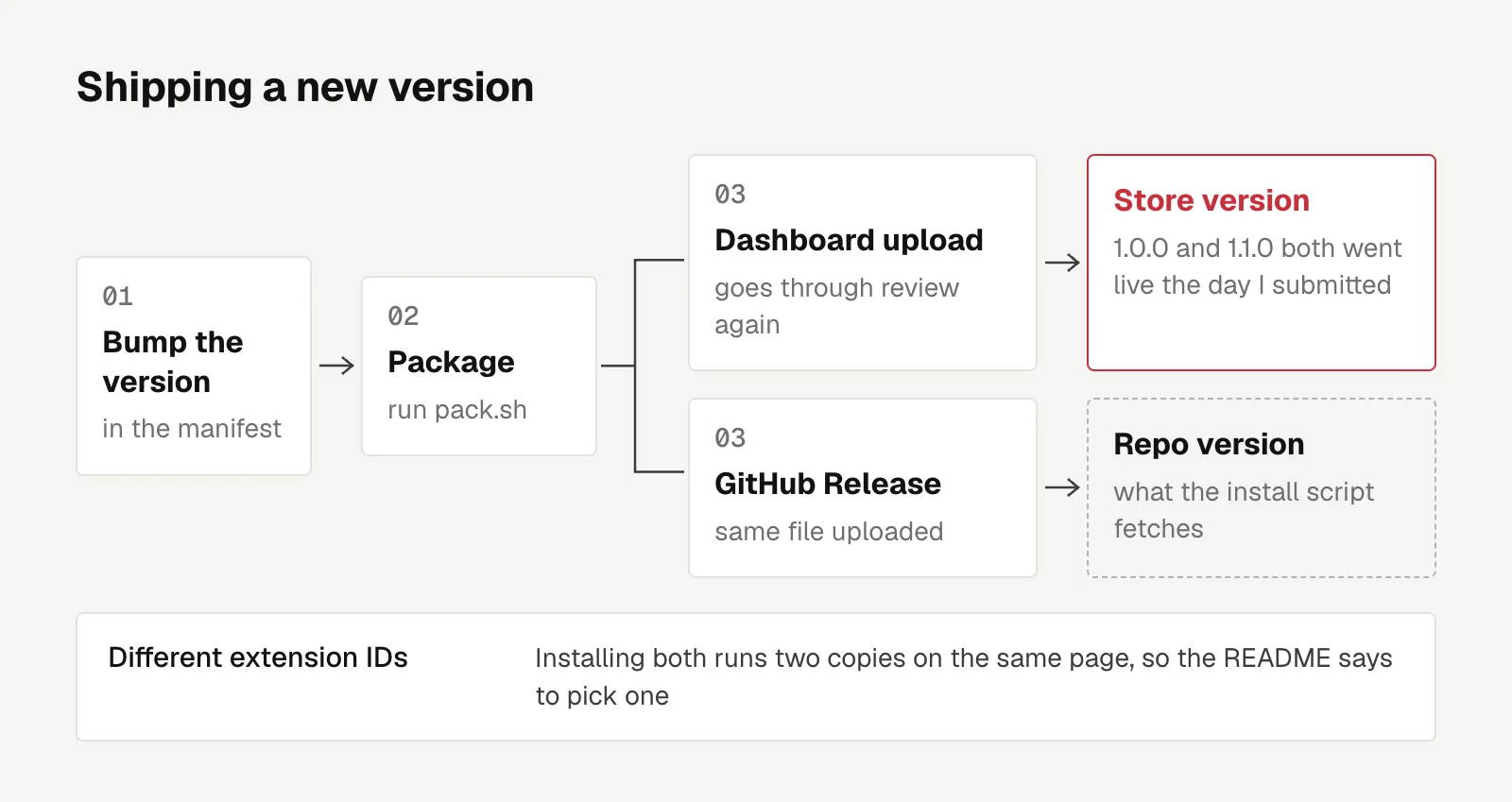
My extension, Auto Approve for Muse, now has two ways to install. One is the Chrome Web Store, where 1.0.0 and 1.1.0 both went live the same day I submitted them.
The other is a one-line install script for people who'd rather not use the store. Chrome doesn't let programs install extensions directly, so the most a script can do is cut the steps down. The last two clicks are still up to you.
How the extension finds muse's approval cards is covered in auto-approving muse.ai cards with a trust list. At first it could only be installed with "Load unpacked", which meant cloning the repo, turning on Developer mode, and picking a folder on every new machine.
Before you submit
The source was already public on GitHub, so the privacy policy is simply PRIVACY.md in the repo. Registering a developer account is a one-time US$5 fee.
I deliberately took care of a few things.
I renamed it from "Muse Auto Approve" to "Auto Approve for Muse". The description says clearly that it's an unofficial tool with no connection to Meta, so it wouldn't look like trademark misuse.
The only permission is storage, the content script is injected only into muse.ai, it makes no network requests of its own, and the privacy practices section says it collects no data. The store screenshots show the popup with captions and don't imitate muse's interface.
I left the test instructions field empty and was never asked to fill it in.
Beyond review, the more annoying part was the dashboard itself. Chrome won't let extensions touch store pages and throws The extensions gallery cannot be scripted, so filling in the forms with browser automation doesn't work.
I put all the fields into store/listing.md in the repo and paste from it for each release.
Shipping a new version means bumping the version in the manifest, running pack.sh to build the package, and uploading it in the Dashboard for another review. The same file also goes to a GitHub Release so the install script can fetch it.
The store version and the repo version have different extension IDs, and installing both runs two copies on the same page, so the README says to pick one.
The one-line install script
# macOS / Linux
curl -fsSL https://raw.githubusercontent.com/homieyangg/muse-auto-approve/main/install.sh | bash
# Windows
irm https://raw.githubusercontent.com/homieyangg/muse-auto-approve/main/install.ps1 | iex
The script downloads the latest zip from GitHub Releases and unzips it, opens chrome://extensions, and copies the folder path to the clipboard.
You turn on Developer mode and click Load unpacked yourself, then paste the path when picking the folder.
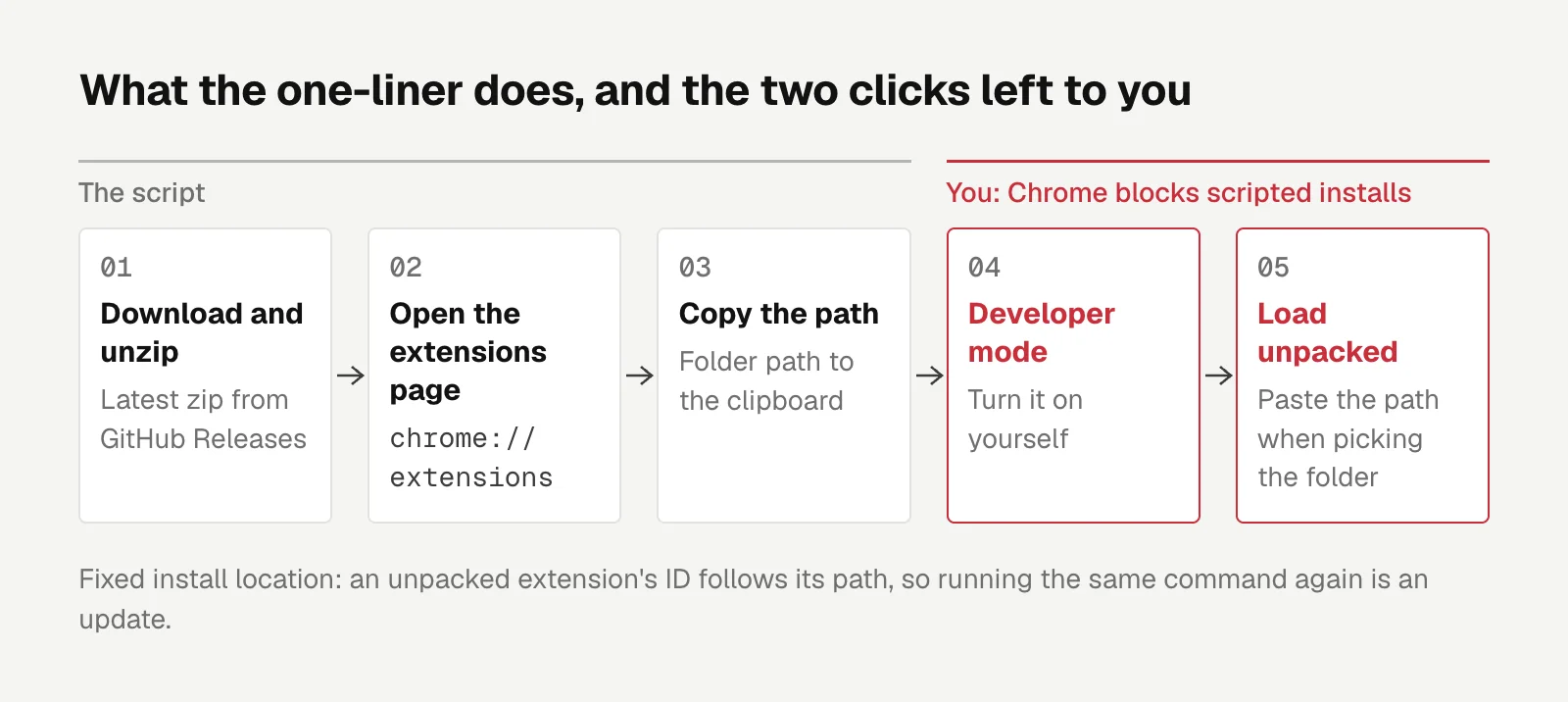
An unpacked extension's ID follows its path, so as long as the path stays the same, settings are kept. That's why the script always installs to muse-auto-approve in the home directory, and running the same command again is an update.
A few design choices:
- If the folder already exists but doesn't contain this extension, it errors out instead of deleting anything. Once the UI went multilingual, the name moved into
_locales, so the check has to look at bothmanifest.jsonand_locales/en/messages.json, or updates get misjudged. install.shtries not to be picky about the environment: curl or wget, unzip orpython3 -m zipfileall work, and if it can't open a browser or there's no clipboard, it prints instructions instead.install.ps1wraps everything in& { }so that underirm | iex, its variables and$ErrorActionPreferencedon't linger in the user's session. It also turns on TLS 1.2 for older PowerShell versions.
PowerShell on an ARM Mac
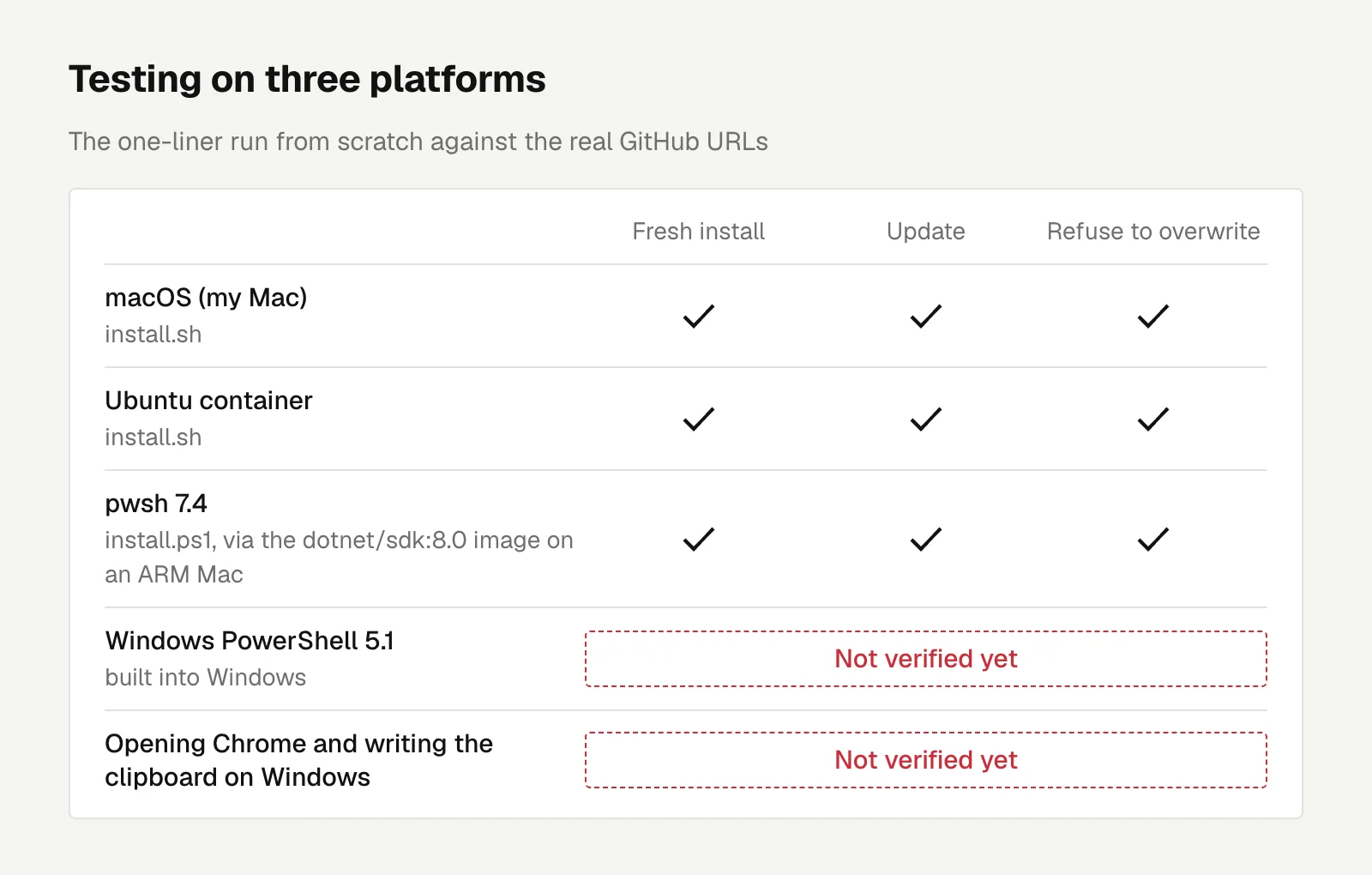
Using the real GitHub URLs, I ran the one-liner from scratch on my Mac, in an Ubuntu container, and in pwsh 7.4. Fresh install, update, and refusing to overwrite all worked.
Testing PowerShell on an ARM Mac had a catch.
The official mcr.microsoft.com/powershell image is amd64 only and hangs under emulation. mcr.microsoft.com/dotnet/sdk:8.0 has an arm64 build with pwsh included, and that works.
Invoke-WebRequest also doesn't support file://, so I ran a separate HTTP server container on the same docker network to serve the files.
Not verified yet: Windows' built-in PowerShell 5.1, and the two steps on Windows that open Chrome and write to the clipboard.
README screenshots and localization
Every install step in the README has a screenshot, one set in Chinese and one in English. They're taken with Playwright and Chrome for Testing on a clean profile, and the red boxes and step numbers are an overlay injected into the page.
On macOS --lang has no effect, so I temporarily set AppleLanguages for Chrome for Testing and deleted it once both sets were done.
The store's promo tiles use an AI-generated illustration with no text as the background. The text and icon are layered on top with HTML, so the AI doesn't get a chance to turn Chinese into gibberish.
Language switching in 1.1.0 uses my own i18n.js that reads _locales, not chrome.i18n. The reason is that the settings page needs to be able to force a language, and chrome.i18n only follows the browser's language.
Engineering
Auto-Approving muse.ai Cards With a Chrome Extension: From Allow-All to a Trust List
My Chrome extension clicks Allow on muse.ai approval cards that stall overnight scheduled tasks, and once other people used it, it moved to a trust list with irreversible actions like posting handled separately.
Letters
Loading comments…